
Download Echosync – Free Windows Backup & Cloud Storage Tool
Overview
Echosync is a free backup and cloud‑storage application designed exclusively for Windows 10 and later versions. Developed by Sylvain Rougeaux, this lightweight tool aims to simplify the process of synchronizing files between local folders and a variety of cloud services, ensuring that your important documents, photos, and media are always protected and accessible. First released on Softonic on May 27 2020, Echosync has steadily evolved, reaching version 4.0 with a clean English interface and a focus on speed, security, and ease of use.
While the program is still relatively new, its core promise is to provide a reliable, no‑cost solution for personal and small‑business users who need a trustworthy backup app without the overhead of a subscription. Echosync integrates directly with Windows Explorer, allowing drag‑and‑drop configuration, and supports automatic, scheduled syncs that run in the background without consuming excessive system resources. The software follows modern security standards, encrypting data during transfer and offering options for versioning, so you can roll back to previous file states if needed.
Whether you are looking to protect work files, keep family photos synced across devices, or maintain a secure archive of project assets, Echosync presents a compelling blend of simplicity and functionality that is rare in the free‑software market.
Key Features
- Automatic Sync Scheduling: Set up hourly, daily, or weekly sync tasks that run without manual intervention.
- Multiple Cloud Provider Support: Compatible with popular services such as Google Drive, Dropbox, OneDrive, and custom FTP/SFTP servers.
- Real‑Time File Monitoring: Detects changes instantly and initiates backup processes as soon as a file is modified.
- Version History Management: Retains previous versions of files, enabling easy restoration of earlier edits.
- Secure Transfer Encryption: Uses TLS/SSL encryption for all data in transit, safeguarding sensitive information.
- Lightweight System Footprint: Consumes minimal CPU and RAM, making it suitable for older PCs and laptops.
- User‑Friendly Interface: Simple drag‑and‑drop setup, clear status indicators, and an intuitive control panel.
- Customizable Filters: Include or exclude specific file types, sizes, or folders from backup jobs.
- Automatic Update Alerts: Notifies users when a newer, more secure version is available.
- Free License with No Hidden Costs: Completely free to download, install, and use for personal or commercial purposes.
Installation & Usage Instructions
Step‑by‑Step Installation Guide
Downloading and installing Echosync is straightforward. Begin by visiting the official Softonic page or the developer’s website to obtain the latest installer (a .exe file). Click the “Download” button, and once the file is saved, double‑click to launch the installer. The wizard will guide you through the standard Windows setup process: accept the license agreement, choose an installation folder (the default location works for most users), and decide whether to create a desktop shortcut. After confirming your preferences, click “Install.” The installation typically completes within a minute, after which you can launch Echosync from the Start menu or the newly created shortcut.
First‑Time Configuration
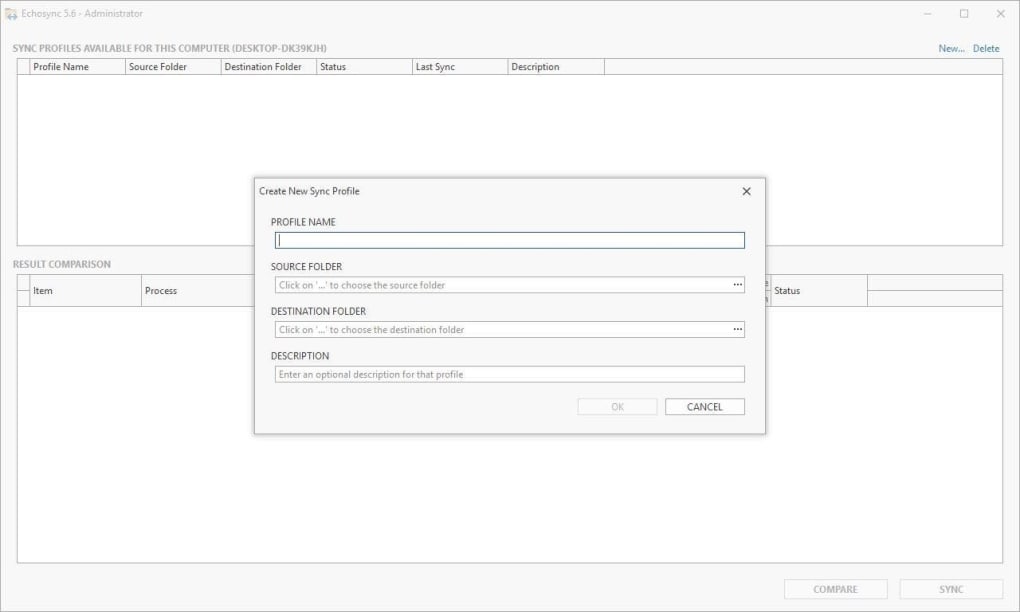
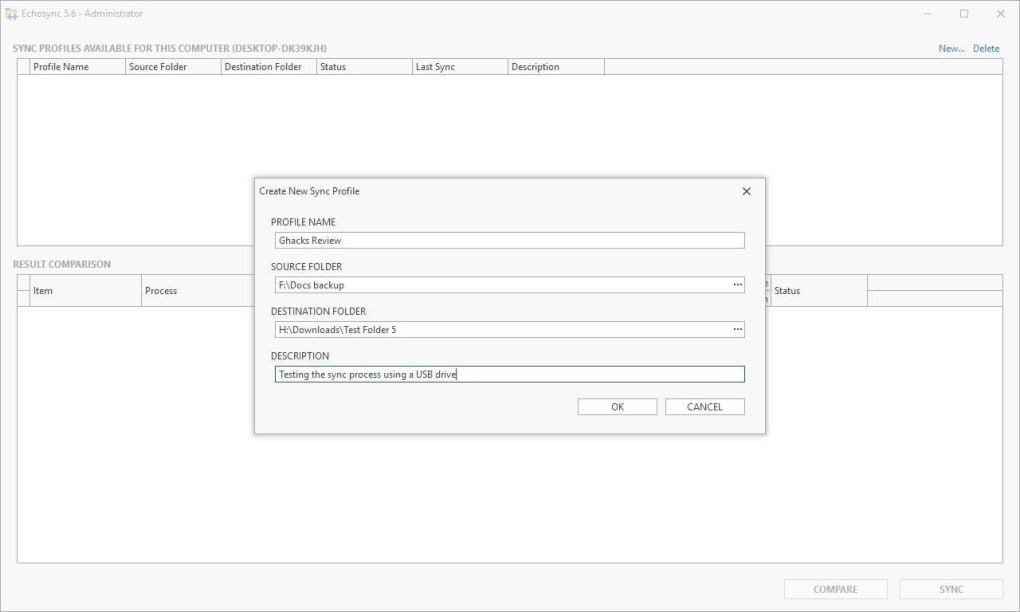
Upon first launch, Echosync presents a welcome screen that offers a quick tour of the main dashboard. To create your initial backup job, click the “New Sync” button. You will be prompted to select a source folder (the local directory you want to protect) and a destination (a cloud service or a secondary local drive).
If you choose a cloud provider, you’ll need to authenticate using your account credentials; Echosync stores these tokens securely on your device. After linking the destination, you can set the sync schedule, enable versioning, and apply file‑type filters. Once configured, click “Save & Run.” The program will perform an initial scan, compare files, and begin transferring data according to your settings.
Ongoing Use and Management
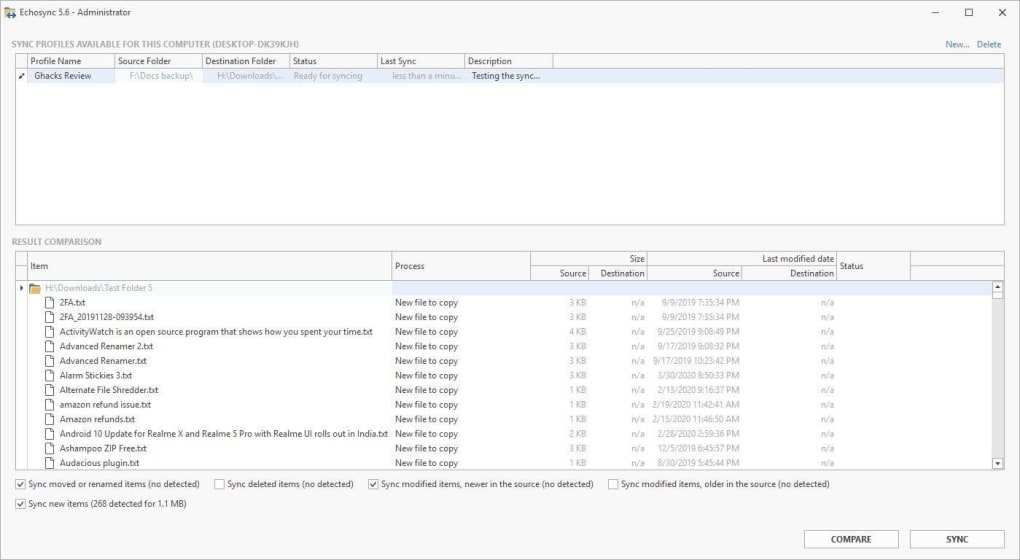
The main interface displays a summary of all active sync tasks, including the last run time, status, and any errors encountered. You can pause, edit, or delete a job at any time. Echosync also provides a log viewer where you can examine detailed records of each sync operation, which is useful for troubleshooting.
For power users, the settings menu offers advanced options such as bandwidth throttling, proxy configuration, and custom scripts that run before or after a sync. Regularly check the “Updates” tab; the software will alert you when a newer version is ready, ensuring you stay protected with the latest security patches. Overall, the installation and usage experience is designed to be as frictionless as possible, allowing you to focus on your work while Echosync handles the backup automatically.
Compatibility, System Requirements & Technical Details
Echosync is built specifically for Windows 10 and later versions, including Windows 11. The application runs on both 32‑bit and 64‑bit architectures, though the 64‑bit version is recommended for optimal performance. Minimum system requirements are modest: a 1 GHz processor, 512 MB of RAM, and at least 100 MB of free disk space for the program files. Because Echosync operates primarily in the background, it has a low impact on CPU and memory usage, making it suitable for older laptops or machines with limited resources. The software leverages the .NET Framework 4.7.2, which is pre‑installed on modern Windows builds; if not present, the installer will automatically prompt you to download the required runtime.
In terms of connectivity, Echosync requires an active internet connection for cloud sync operations. It supports both wired Ethernet and Wi‑Fi networks, and can be configured to work behind corporate firewalls using proxy settings. The application respects Windows’ built‑in security mechanisms, such as User Account Control (UAC), and will request elevated privileges only when necessary (e.g., when accessing system folders). For users concerned about privacy, Echosync does not collect personal data beyond the authentication tokens needed for cloud services, and all such data is stored locally in an encrypted format. The program also integrates with Windows Task Scheduler, allowing advanced users to trigger sync jobs based on system events or specific times of day.
Pros & Cons
Advantages
- Completely free with no hidden subscription fees.
- Supports multiple major cloud storage providers out of the box.
- Lightweight and runs silently in the background.
- Real‑time monitoring and automatic versioning keep files safe.
- Secure TLS/SSL encryption for all data transfers.
- Intuitive drag‑and‑drop interface suitable for beginners.
- Regular update notifications keep the software current.
- Customizable filters and scheduling options for power users.
Drawbacks
- No native macOS, Linux, Android, or iOS client – Windows‑only.
- Limited advanced reporting compared to enterprise‑grade solutions.
- Initial setup may require manual authentication for each cloud service.
- No built‑in encryption for files at rest; relies on cloud provider’s security.
- Community support is primarily through forums; no dedicated help desk.
Frequently Asked Questions
Is Echosync really free or are there hidden costs?
Echosync is completely free to download, install, and use. There are no subscription fees, premium tiers, or hidden charges. All core features—including automatic sync, cloud integration, and versioning—are available without any cost.
Which cloud storage services does Echosync support?
Echosync natively integrates with Google Drive, Dropbox, Microsoft OneDrive, and any service that supports FTP or SFTP. Additional providers can be added via custom endpoints, making the app flexible for most user needs.
Can I use Echosync on a Mac or Linux machine?
Currently, Echosync is built exclusively for Windows 10 and newer versions. There are no native Mac, Linux, Android, or iOS clients at this time, although the developers have hinted at cross‑platform plans for future releases.
How secure is the data during transfer?
All file transfers are encrypted using TLS/SSL, the same standard used by most online banking services. This ensures that data cannot be intercepted or read by third parties while in transit between your PC and the cloud destination.
Does Echosync keep previous versions of my files?
Yes. The version history feature stores prior copies of changed files, allowing you to restore earlier versions directly from the application interface. The number of retained versions can be configured in the settings.
Conclusion & Call to Action
Echosync delivers a robust, free solution for anyone who needs reliable backup and cloud‑sync capabilities on Windows. Its blend of automatic scheduling, real‑time monitoring, and multi‑cloud support makes it a strong contender against paid alternatives, especially for home users and small businesses that value simplicity and security. While the lack of native macOS or mobile clients limits its reach, the Windows‑only focus allows the developer to fine‑tune performance and keep the software lightweight. If you’re looking for a tool that can protect your files without demanding a subscription, Echosync is worth a download and a test run. Install it today, configure a sync job in minutes, and enjoy the peace of mind that comes with having a secure, up‑to‑date backup of your most important data.
Download Echosync now and start safeguarding your files for free.







